Match Rules & Recipes#
A match rule is a named set of field comparisons that together define one kind of duplicate. Dedupify evaluates every rule you enable for an object type and surfaces candidate pairs that score above your configured threshold.
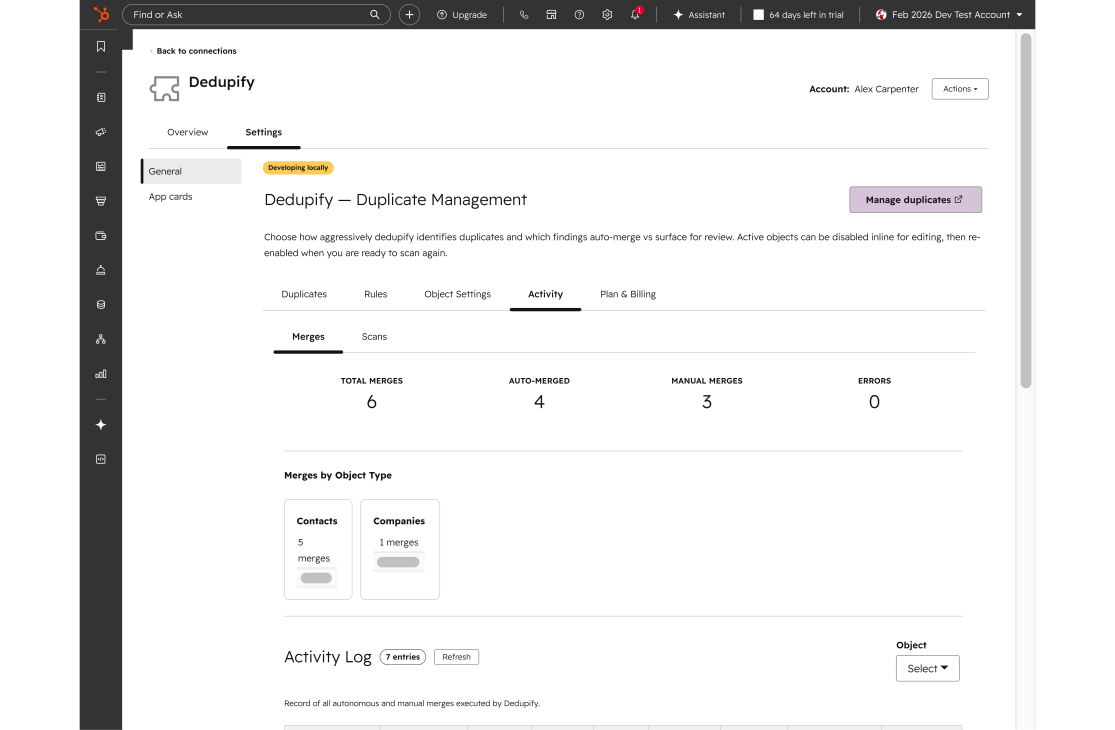
The Rules tab, showing active match rules and their strength badges.
What Makes Up a Rule#
Each match rule has:
- Name: a short label shown in the Rules tab and on the rule strength badge.
- Description (optional): free-text notes for your team.
- On/Off state: inactive rules do not run scans or produce candidates.
- One or more field rules: the properties Dedupify compares and how it compares them.
Field Rules#
A field rule pairs a property with a recipe. You choose the property; Dedupify selects and applies the matching logic appropriate for that field type automatically. Each recipe exposes a small number of option toggles — for example, whether to treat nicknames as equivalent or to strip email plus-tags — all with sensible defaults.
Every field rule also carries a hard rule setting with three options:
- None: the field contributes to the confidence score but does not gate matching.
- Exact match required: the two values must match after normalization; pairs that fail are not surfaced regardless of their overall score.
- Field required: both records must have a non-empty value for this property; pairs where either record is missing the value are not surfaced.
Limits#
| Constraint | Limit |
|---|---|
| Field rules per match rule | 5 |
| Unique properties across all rules for one object | 5 |
| Duplicate property sets across rules | Not allowed |
Two rules with the identical set of properties are not permitted — differentiate rules by adding, removing, or swapping at least one property.
Rule Strength#
Every rule card displays a rule strength badge — a score from 0 to 100 with a plain-language label:
- Strong (green)
- Good (blue)
- Weak (yellow)
- Danger (red)
The score reflects how confidently the rule is likely to identify true duplicates. A tooltip explains the key contributors. In general, rules score higher when they include a strong identifier property (such as email, phone, domain, or an external ID), combine multiple properties, apply at least one hard rule, and use conservative thresholds. Rule strength is calculated automatically — it is not a value you set directly.
Rule strength gates auto-merge: only rules that meet a minimum strength threshold can have auto-merge enabled. See Thresholds & Auto-Merge for the full treatment.
Multiple Rules Per Object#
You can create multiple rules for the same object type. Each rule runs independently — a candidate pair is surfaced if it matches any active rule. This lets you define separate duplicate criteria: for example, one rule based on email and one based on phone plus company name.
For guidance on which properties build reliable rules, see the Supported Properties catalog.
Object Settings#
Some object-level options — such as which properties appear on the review card — are configured separately in the Object Settings tab. See Object Settings.
Testing Tools#
The rule editor includes two built-in tools for validating a rule before you activate it:
- Test rule: pick any two records in your portal and see how the rule scores them, with a per-field breakdown and hints explaining why fields did or did not contribute to a match.
- Test pair: evaluate a specific candidate pair and see the match verdict — Would auto-merge / Would review / Would not match — along with field-by-field contributions.
Both tools operate against live CRM data, so results reflect your actual records and the rule settings as they stand at the time of the test.
Thresholds & Auto-Merge#
Each rule has a review threshold that controls which pairs enter the review queue, and an optional auto-merge setting (off by default). Full configuration details are in Thresholds & Auto-Merge.
Scanning#
Saving and enabling a rule triggers a background scan. After the initial scan, Dedupify catches new duplicates in near-real-time as records change. See Scanning for details on manual rescans and scan status.